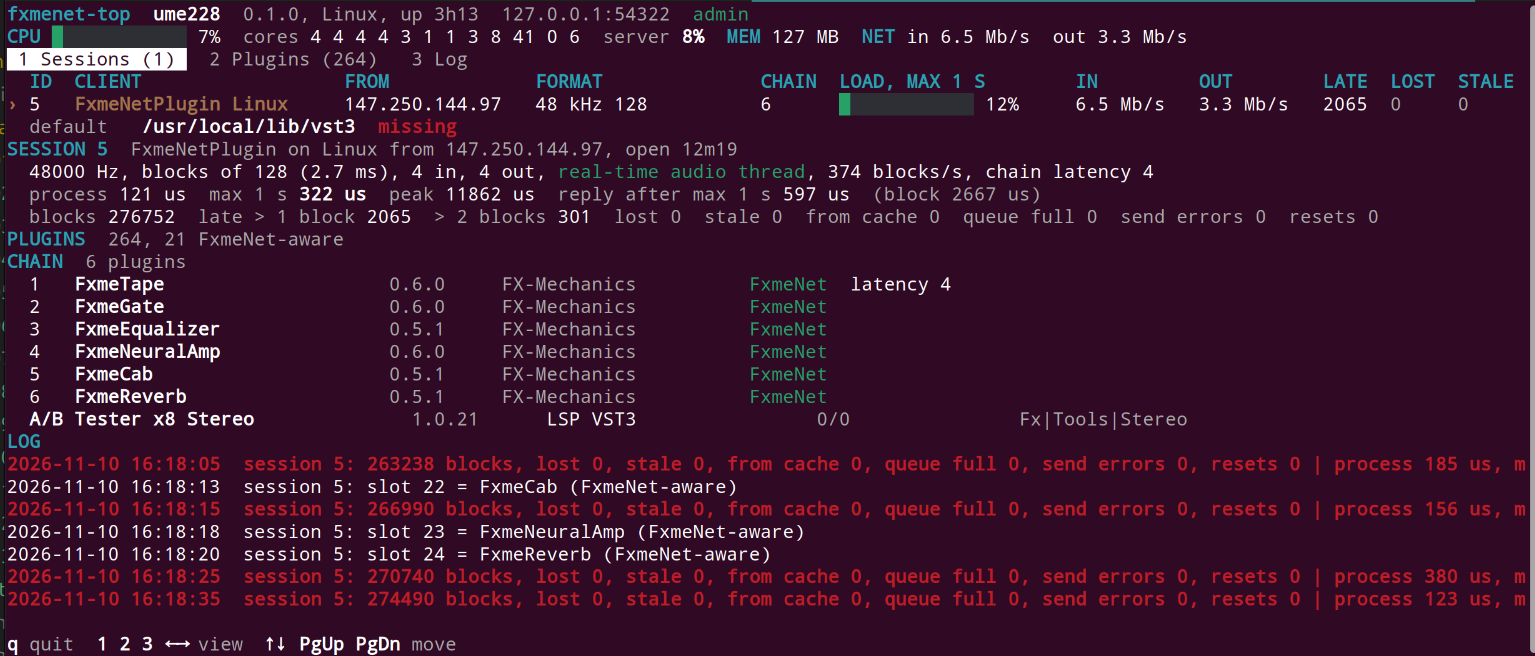
fxmenet-top is a terminal program that shows what a server is doing, in the manner of top. It runs on Linux, macOS and Windows 10 or later, in any terminal that understands ANSI escape sequences. It connects to the server’s control port as a monitor: it opens no session and never touches the audio, so it can be started and stopped at will.
fxmenet-top                      # the server on this machine
fxmenet-top 192.168.1.20         # a server elsewhere (port 54322)
fxmenet-top studio.local:54322   # with a port
fxmenet-top --once               # print one frame without colours, and exit
fxmenet-top --find               # list the servers on the local network
If the server stops, fxmenet-top says so and reconnects when it returns. To disable colours, set the environment variable NO_COLOR.
Two lines are always visible. The first gives the server’s name, version, system and uptime, the address, and whether you may change the plugin folders (admin) or only watch (read only). The second gives:
Below them, three views are selected with 1, 2 and 3 (or the left and right arrows).
. One line per client session: its name and system, its address, the format (sample rate and block size), the number of plugins, a bar for the load, the traffic, and the counts of late, lost and stale blocks. The load bar compares the worst processing time of the last second with the block’s duration: green is comfortable, yellow is getting tight, red means the server is close to missing deadlines. A count that has just moved turns red for ten seconds.
Choose a session with the up and down arrows. Under the list, the details show the format, whether the audio thread has real-time priority, the processing times, all the counters, and the session’s chain with each plugin’s version, vendor and latency. The latest log lines fill the rest of the screen.
. The folders the server searches (default, saved, and given on the command line), with missing ones marked; the progress of the scan in progress; and the plugins found, sorted by name. Press / to filter them, as in the plugin’s own list; Esc clears the filter.
When you are allowed to (admin), these keys change the folders:
|
Key |
Action |
|
|
|
|
a
|
Add a folder (type an absolute path on the server, then Return). |
|
d
|
Remove the selected saved folder. |
|
x
|
Turn the default VST3 folders on or off. |
|
r
|
Rescan: new or changed plugins only. |
|
R
|
Full rescan, ignoring the cache. |
|
Tab
|
Move between the list of folders and the list of plugins. |
|
|
|
|
|
|
|
|
|
The scan runs in the background and its progress appears at once. Folders you add are kept by the server for its next runs.
. The server’s log, with the latest lines at the bottom. Scroll with the arrows, PgUp and PgDn; End follows the newest line again. Lines that contain error, warning or skipped are red. / filters the lines.
|
Key |
Action |
|
|
|
|
1
2
3
or arrows |
Choose the view. |
|
Up
Down
PgUp
PgDn
|
Move in the list. |
|
Home
End
|
First or last entry (in the log, the newest). |
|
/
|
Filter the plugins or the log. |
|
Esc
|
Clear the filter, or cancel typing. |
|
q
|
Quit. |
|
|
|
|
|
|
|
|
|